Google Postmaster Tools: The Complete Setup & Monitoring Guide (2026)
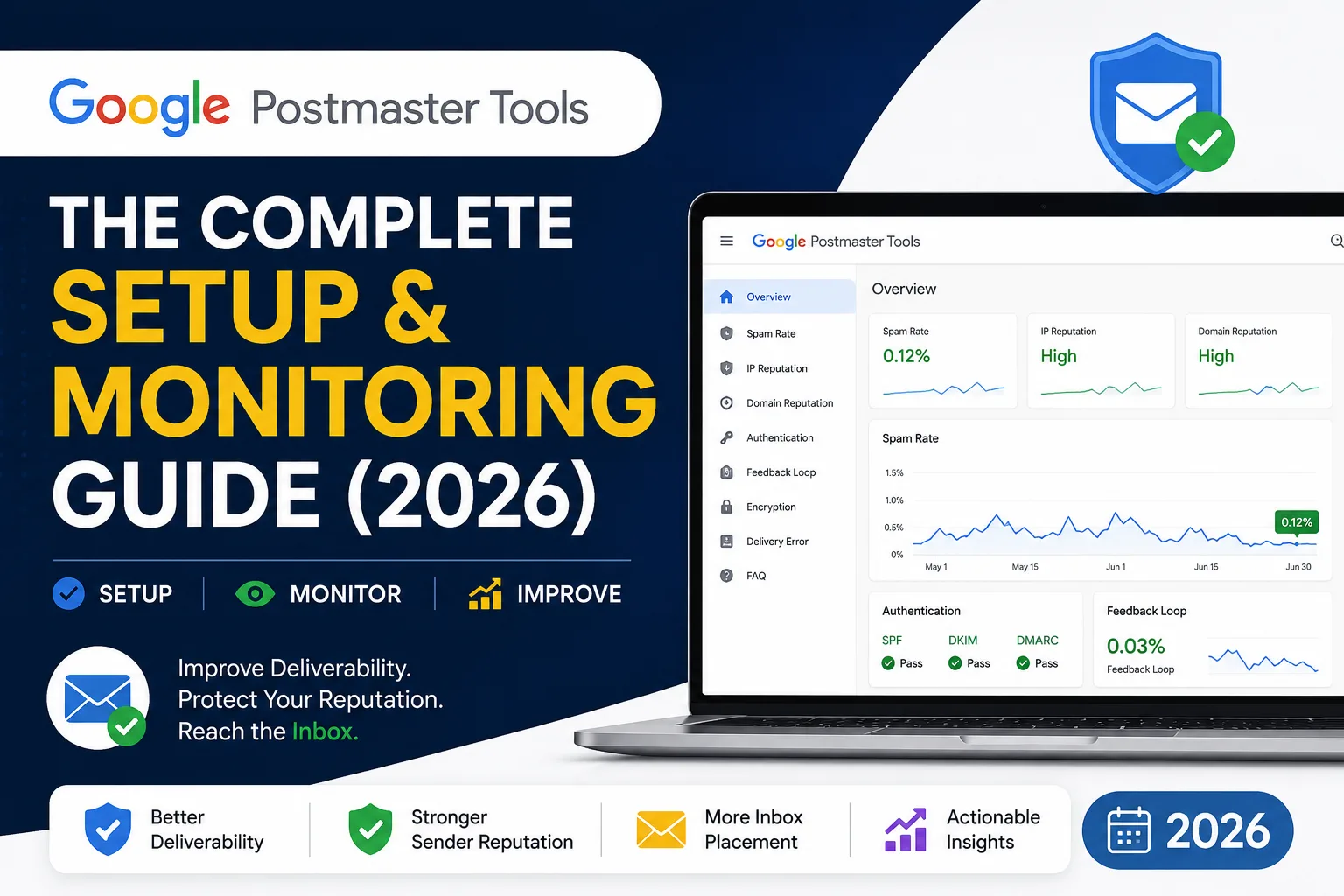
If you send any meaningful volume of email — newsletters, cold outreach, transactional emails, or notifications — Google Postmaster Tools is the closest thing you’ll get to a direct window into how Gmail sees your domain. It’s free, it’s official, and most senders don’t set it up until after they’ve already started landing in spam.
What Google Postmaster Tools actually shows you
Once verified, the dashboard reports on:
- Domain reputation — a rough classification (bad, low, medium, high) of how Gmail perceives your sending domain overall
- IP reputation — the same classification, but for the specific IP addresses you send from
- Spam rate — the percentage of your emails that recipients mark as spam, tracked over time
- Domain/feedback loop data — authentication results for SPF, DKIM, and DMARC
- Delivery errors — temporary or permanent failures Gmail is reporting for your mail
- Encryption — what percentage of your inbound/outbound mail to Gmail used TLS
This data only covers mail sent to Gmail addresses, but since Gmail is one of the largest mailbox providers globally, it’s a reasonable proxy for your overall sender reputation.
Step 1: Verify domain ownership
Go to postmaster.google.com and sign in with a Google account. Add your sending domain (not a specific email address — the domain itself, e.g., yourcompany.com). Google will give you a TXT record to add to your domain’s DNS settings to prove ownership. This is the same general process as verifying a domain in Google Search Console.
Step 2: Wait for data to populate
Postmaster Tools needs a meaningful volume of mail flowing to Gmail addresses before it shows reliable data — for low-volume senders, some metrics may stay blank for a while. Domain reputation and spam rate typically take a few days to start showing trends once you’re sending consistent volume.
Step 3: Check your authentication setup
Before troubleshooting deliverability, confirm the basics are in place:
- SPF — a DNS TXT record listing which servers are authorized to send mail on your domain’s behalf
- DKIM — a cryptographic signature added to your emails, verified against a public key in your DNS, proving the message wasn’t altered in transit
- DMARC — a policy record telling receiving servers what to do if SPF or DKIM checks fail (reject, quarantine, or do nothing), plus where to send reporting data
Postmaster Tools’ authentication tab will show pass/fail rates for each. If any are failing consistently, that’s usually the first thing to fix before anything else.
Step 4: Monitor spam rate closely
Google’s general guidance is that a spam rate consistently above roughly 0.3% is a signal worth acting on, with rates climbing meaningfully higher putting your deliverability at real risk. The exact thresholds aren’t published as a hard rule, so treat this as a trend to watch rather than a fixed cutoff — a spike after a campaign send is more informative than any single number.
If spam rate climbs, common causes include:
- Sending to a purchased or unverified list
- A sudden volume increase from a previously low-volume domain
- Content that trips spam filters (excessive links, spammy subject lines)
- Recipients who signed up but don’t recognize your sender name
Step 5: Separate domains for different sending purposes
If you send both transactional email (receipts, password resets) and marketing or cold outreach from the same domain, a reputation hit from one can affect deliverability for the other. Using a subdomain (e.g., mail.yourcompany.com for marketing, app.yourcompany.com for transactional) isolates the reputation of each sending purpose, so a spike in spam complaints on one doesn’t drag down the other.
This also applies directly if you’re doing cold email outreach — it should never run from your primary domain or your transactional sending infrastructure, precisely because a reputation problem on one can take down deliverability for the other.
Quick setup checklist
- Domain verified in Postmaster Tools via TXT record
- SPF, DKIM, and DMARC all passing
- Spam rate checked weekly, not just after a send
- Marketing/cold outreach separated from transactional sending domain
- Authentication re-checked after any change to your sending infrastructure (new ESP, new server, etc.)
Postmaster Tools won’t fix deliverability problems on its own, but it’s the most direct signal you’ll get for what Gmail actually thinks of your domain — and it’s free. Worth setting up before you need it, not after a campaign starts landing in spam.

Jerry Miller
Jerry Miller is a technology writer specializing in AI lead intelligence, spam prevention, website security, and conversion optimization. He focuses on helping businesses understand how fake leads, bots, and low-quality traffic impact marketing performance and revenue. His articles cover practical strategies for improving lead quality, protecting web forms, and using AI-driven systems to identify real customer opportunities.